
Web apps: sites people open from Protokol and sign in to
Create a web app that people open from their Protokol home screen and sign in to with their Protokol account, keep it private or publish it, and control what it can do.
A web app is a website or single-page app that people open from Protokol and sign in to with their Protokol account. You create it under Developer → Web apps, next to your other apps. It signs users in with Sign in with Protokol (OpenID Connect).
Web apps are not OAuth clients. OAuth clients are credentials for integrations that call the Protokol API: scripts, CLIs and servers. If you are building one of those, read the OAuth 2.0 post instead. This post is about apps with a Launch URL that people open.
Create a web app
Sign in to the dashboard as a project admin, open Developer → Web apps, and choose Create web app. The form asks for:
| Field | Description |
|---|---|
| Name, description, logo, links | Shown on the consent screen and, for public apps, in the marketplace |
| Launch URL | Where Protokol sends people who open your app |
| Redirect URIs | Exact https:// callback URIs of your app |
| Sign in | The profile and email details your app asks for |
| API permissions | Optional. Only needed if your app calls the Protokol API. Sign-in-only apps need none |
| Visibility | Private or Public |
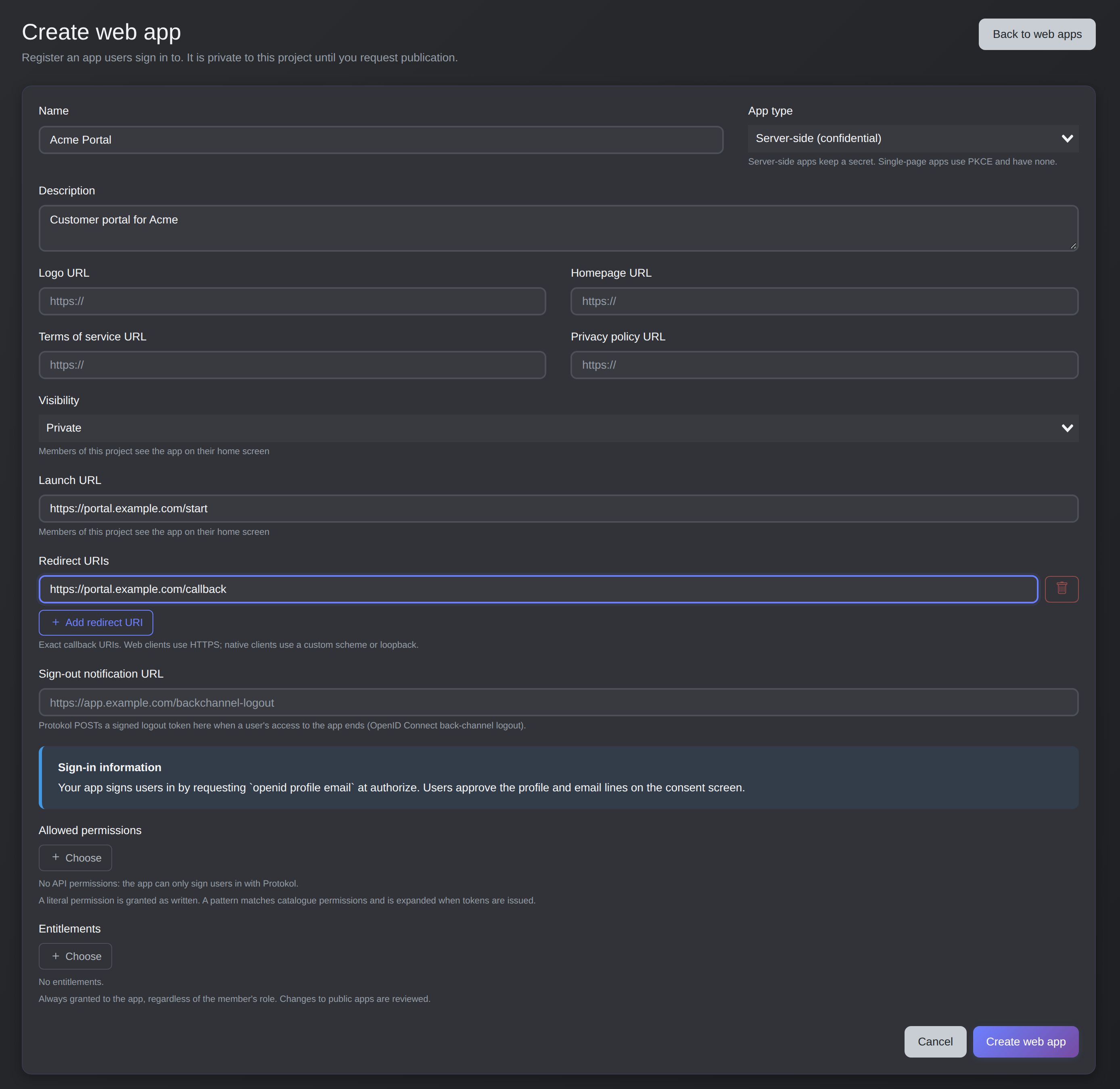
The Create web app form: name, launch URL and redirect URI.
On save, a confidential app shows its client secret once. Copy it into your secret store; you can rotate it from the app's page. A web app is confidential by default, and a single-page app that cannot keep a secret can be created as a public client that uses PKCE.
Private or public
| Private | Public | |
|---|---|---|
| Who can use it | Members of your project | Members of any project that installs it |
| Review | None | Protokol reviews it before it is listed |
| Marketplace | Never listed | Listed after approval |
| Home screen | Members of your project, once a Launch URL is set | Members of every project that installed it |
| Changes | Apply immediately | New revisions are reviewed |
For a public app, choose Request publication. Edits to the name, description, logo, homepage, terms of service, privacy policy, Launch URL and redirect URIs create a new revision. The marketplace keeps showing the approved version until the new one is approved, and an edit never removes your app from the marketplace. In your own project you see your changes immediately, so you can test them before review.
The launch flow
The Launch URL must be https, with no fragment and no credentials, and its host must share a registrable domain with one of your redirect URIs. When someone opens your app, Protokol sends their browser a GET request:
GET https://app.example.com/start?iss=https://lemon.protokol.io&project_id=PROJECT_ID
iss and project_id are the only parameters Protokol adds. Your app then:
- Checks that
issequals the issuer from the discovery document, and rejects the request otherwise. - Starts its normal OpenID Connect authorize request with a fresh
state,nonceand PKCE challenge, forwardingproject_id. The user is not asked to choose a project again.
Try prompt=none first. If the user already approved your app, they get straight in without a screen. On a login_required or consent_required error, send them through again without prompt=none. The Launch URL carries no code, so always complete the full authorization code flow.
Installing in a project
For a public app, a project admin installs it from the marketplace before the project's members can sign in. A member who opens it from the marketplace card is told to ask an admin. Installed apps show under Your apps on every member's home page. Your own project does not need to install it.
If someone signs in from your own site to a project that does not have the app yet, an admin sees a consent screen noting that approving also installs the app. A member can only decline, which returns access_denied. With prompt=none the request returns interaction_required.
Admins manage installed apps under Developer → Web apps → Installed from the marketplace. If an admin uninstalls an app, access for every member of that project is revoked: access tokens stop working and refresh tokens are rejected.
Workspace access
Admins choose which workspaces can use an app, at install time and later. By default every workspace has access. A member whose role is not linked to an allowed workspace cannot sign in to the app in that project, and the app does not appear on their home page. Project admins always have access. Narrowing the workspaces revokes the access of members who no longer qualify. This also applies to private apps.
Permissions your app gets
If your app calls the Protokol API, the permissions in its access token come from three sources:
| Source | Who sets it | Depends on the user's own rights? |
|---|---|---|
| What users approve at sign-in | The user, on the consent screen | Yes. A user can only approve what they hold |
| Entitlements | You, the developer | No. Always granted |
| Grants from a project admin | An admin of a project that installed your app | Regular grants: yes, and the user must approve them. Forced grants: no |
Approved scopes. Your app requests permissions in scope, up to the API permissions you allowed on the app. The token holds only what the user is allowed to do in that project.
Entitlements. You list permissions your app always needs on its page under Developer → Web apps. They are in every token whatever the member's role, and members do not approve them. They are literal permission names, with no patterns. For a public app they are part of the listing, so a change goes through review.
Admin grants. After installing an app from another project, an admin can add any permission of the project from the app's Settings. A regular grant is an offer, shown to each member who holds that permission as "New from your project admin"; it reaches the token only after they approve. A forced grant goes to every member who can use the app without asking, so admins should add one only when the app does the work on the project's behalf. Entitlements and forced grants appear on the consent screen under "Also granted".
Changes reach your app at its next token refresh or code exchange, so request offline_access if you need to pick them up without a new sign-in. Introspection returns oauth_ungated, the permissions granted regardless of the user's own rights:
{
  "active": true,
  "scope": "perm64:… perm64:…",
  "oauth_ungated": ["manage orders"]
}
Treat anything in oauth_ungated as something the app may do for anyone, and the rest as things this particular user may do.
Signing users out when access ends
Your app keeps its own session, and it does not end by itself when Protokol access ends. Access ends when the user disconnects the app, an admin revokes or uninstalls it, an admin narrows workspace access, the app is suspended or deleted, or a refresh is rejected.
At minimum, call the userinfo endpoint on each page load or at a short interval; a 401 means the token was revoked. For immediate sign-out, register a Sign-out notification URL (OpenID Connect Back-Channel Logout 1.0). Protokol sends a POST with a signed logout_token (a JWT, header typ: logout+jwt) as soon as a sign-in session ends. The URL must be https and on the same registrable domain as one of your redirect URIs.
Validate the token: signature against the JWKS, typ, iss, aud, expiry, the back-channel logout event, no nonce, and an unseen jti. Then end every session for that sub and project_id, and reply 200. Respond within five seconds.
A short worked example
You build an internal tool for your team.
- Create a private web app with a
httpsLaunch URL and a callback redirect URI on the same domain. Request onlyopenid profile email, so it needs no API permissions. - Members see it under Your apps. Opening it hits your Launch URL, your app checks
iss, and starts the authorize request withprompt=noneand theproject_idit received. - First-time users approve the consent screen once. After that, sign-in is silent.
- Register a Sign-out notification URL so a removed member loses their session immediately.