
Kortex: the AI layer of your Protokol project
Kortex is Protokol's built-in AI assistant: agents, knowledge bases, conversations, access and usage, plus the tools and actions that connect Forge apps and the ptkl toolkit to it.
Kortex is the AI assistant built into Protokol. This post covers what you set up around it (agents, knowledge bases, conversations, who may use it, and usage), and how your own code connects to it: Forge apps that let the assistant act on them, and the ptkl toolkit that manages everything from a terminal.
The pieces
| Piece | What it is |
|---|---|
| Agent | A configured assistant: a name, a description, a system prompt, the knowledge bases it reads, retrieval settings and generation settings. |
| Knowledge base | A named set of documents an agent can search. |
| Document | A file uploaded to a knowledge base. |
| Conversation | A chat with an agent, kept on the platform or only locally. |
| User access | Who may use Kortex, and which agents they may use. |
| Usage | What a project, or one user, has used, by month. |
The examples use the toolkit commands.
Agents and knowledge bases
An agent is created from a JSON payload. The documented fields are name, description, system_prompt, knowledge_bases, rag_config, llm_settings and model_tier.
ptkl kortex agent create --data '{"name":"Support Bot","system_prompt":"You help users with billing questions.","model_tier":"standard"}'
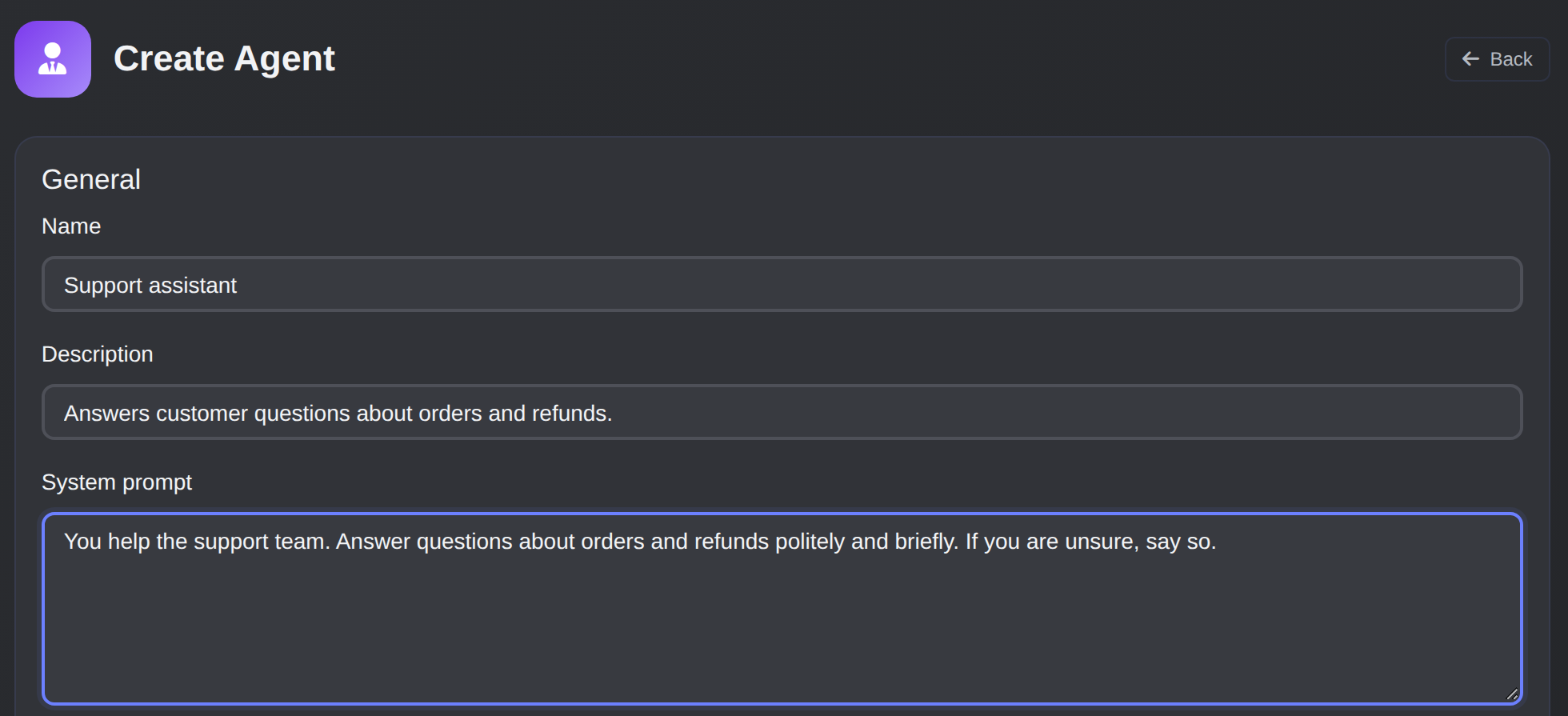
The Create Agent form: name, description and system prompt.
A knowledge base takes a name, a description and a chunking_strategy. You upload documents to it, and an agent that lists the knowledge base in knowledge_bases can search it.
ptkl kortex kb create --data '{"name":"Product Docs","chunking_strategy":"semantic"}'
ptkl kortex doc upload --kb <kb-uuid> --file ./refund-policy.pdf
If a document fails to process, ptkl kortex doc retry runs it again. To see what an agent would find, search directly. The agent determines which knowledge bases are searched, and --top-k sets how many chunks come back (the server clamps it to 1 to 10):
ptkl kortex kb search "refund policy" --agent-uuid <agent-uuid> --top-k 5
An agent selects the system prompt, the model tier, the knowledge bases and the generation settings, including temperature. A low-temperature agent suits extracting facts, a different one suits writing copy.
Conversations
Run ptkl kortex with no subcommand and you get an interactive chat session in the terminal. By default the conversation stays local. Add --cloud to save it on the platform, and resume any conversation later with --conversation:
ptkl kortex "explain this workflow error" --cloud
ptkl kortex --agent 3fae1c2e-... --conversation 9c21ab4f-...
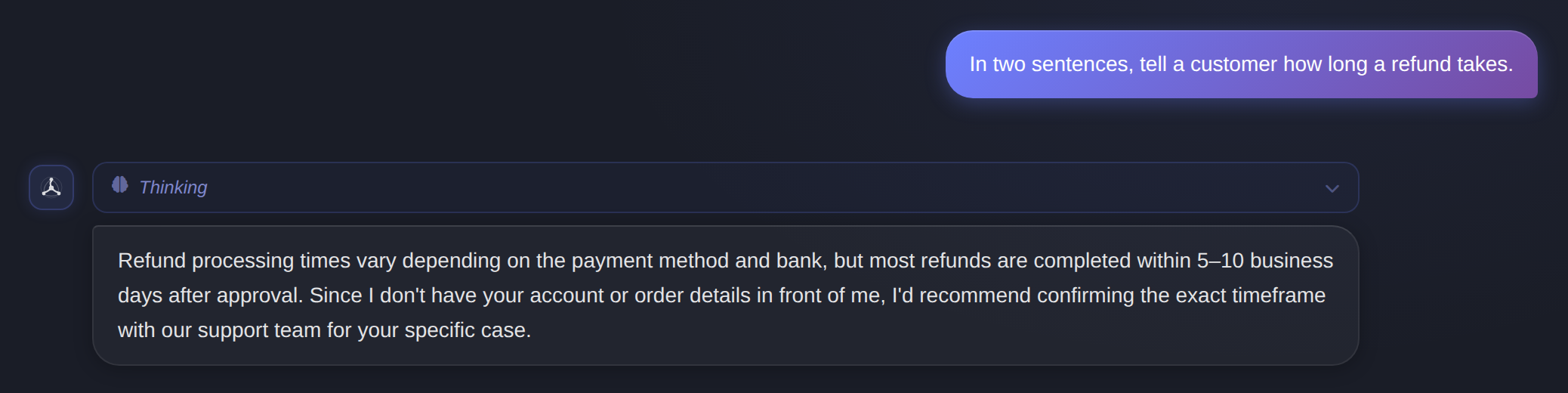
Ask an agent a question in the chat panel and read its reply.
Without --agent, the chat uses your last agent, or protokol-bot. Saved conversations can be listed, read and deleted with ptkl kortex conversation list|get|delete. An administrator can include every user's conversations with --all-users, and archived ones with --archived.
User access and usage
Kortex access is granted per user, and per agent. When your app asks for something a user may not do, the call fails with no_access, so show it as "you do not have access to this feature" rather than as an error.
For usage, one command reports on the project or on a single user:
# Project-wide usage for a month
ptkl kortex usage --month 2026-07

# A single user's monthly breakdown
ptkl kortex usage --user 7b1e4a2d-... --breakdown
Actions can be refused with quota_exceeded when a project or user limit has been reached, so handle that code in your UI.
An agent can run on the project's own provider key (bring your own key). Such an agent must be given per-run token and per-day run limits when it is put to work. The Workforce post covers putting agents to work.
How Forge apps use Kortex
A Forge app talks to Kortex in two directions:
- Tools let the assistant act on your app. You register what the app can do. The user talks to the assistant, and it calls back into your app.
- Actions let your app ask the assistant. You call
run()from a button handler, describe the job and the shape of the answer, and get structured data back. No chat is involved.
A rule of thumb: if the user is driving, register a tool. If your UI is driving, run an action.
Context and tools
Install @ptkl/components and import from its forge entry point. Two calls make an app usable by the assistant: describe the page, and register a tool.
import { registerTool, registerContext } from '@ptkl/components/forge'
import { Platform } from '@ptkl/sdk'

const sdk = new Platform()

registerContext(
  'Order #1234',
  'Viewing order details. Status: processing. Customer: John Doe.'
)

registerTool(
  'get_order_status',
  'Returns the current status of an order by UUID.',
  {
    type: 'object',
    properties: {
      uuid: { type: 'string', description: 'Order UUID.' }
    },
    required: ['uuid']
  },
  async (args) => {
    const order = await sdk.component('orders').get(args.uuid)
    return { status: order.status, updated_at: order.updated_at }
  }
)
Now a user can ask "What's the status of this order?" and the assistant calls your tool.
Tool names control confirmation. By default the policy comes from the name:
| Name starts with | What happens |
|---|---|
get_, list_, find_, search_ |
Runs automatically. |
set_, save_, add_, update_ |
Asks the user to confirm. |
create_, publish_, delete_, remove_ |
Asks to confirm, treated as higher risk. |
You can override this with a policy object (risk, requiresConfirmation, category, fullAccessAuto). React apps get hooks that register and clean up with the component: useKortexTool, useKortexContext, useKortexHelper and useIsKortexAvailable.
Actions
An action is one bounded operation, triggered by your UI, that returns data. Supply a schema and the output is validated against it. Kortex retries once with the validation errors before returning a schema_invalid error.
const { run, data, isRunning, error } = useKortexRun({
  name: 'generate_product_attributes',
  agent: PRODUCT_AGENT_UUID,
  instructions:
    'Extract product attributes from the supplied title and description. ' +
    'Only emit values directly supported by the copy — never invent specifications.',
  schema: {
    type: 'object',
    required: ['attributes'],
    properties: {
      attributes: {
        type: 'array',
        items: {
          type: 'object',
          required: ['name', 'value', 'confidence'],
          properties: {
            name:       { type: 'string' },
            value:      { type: 'string' },
            confidence: { type: 'number', minimum: 0, maximum: 1 }
          }
        }
      }
    }
  }
})
The agent field has no default, deliberately, because it selects the prompt, tier, knowledge bases and temperature. Kortex shows only a small progress pill while an action runs. The result is yours to present, and you should never apply it silently: show a diff or a preview and let the user accept it.
An action can also use your registered tools (tools: true, or an array naming a subset). Approval works as it does in chat, so an action is not a way around the policy layer. Actions are capped at five tool rounds. Failures come back as an error.code such as no_access, quota_exceeded or schema_invalid.
Testing locally
ptkl forge dev provides a working window.kortex and a DevTools panel. A Tools tab lists every registered tool with its resolved policy and lets you invoke one with your own arguments. A Runs tab records the tool calls and their arguments, what each returned and the final data or validation error. Dev runs use your CLI profile token and spend real tokens from your project's budget. Approval prompts do not appear in dev, so check approval flows in a deployed app.
Where to use it
Register tools when users should drive an app by talking. Run actions when a button should produce data. Use knowledge bases when an agent should answer from your own documents, and the toolkit when you want all of it in scripts.
An example: a support bot
The toolkit commands fit together like this:
# 1. Create a knowledge base and upload docs
ptkl kortex kb create --data '{"name":"Product Docs"}'
ptkl kortex doc upload --kb <kb-uuid> --file ./refund-policy.pdf

# 2. Create an agent wired to that knowledge base
ptkl kortex agent create --data '{"name":"Support Bot","knowledge_bases":["<kb-uuid>"]}'

# 3. Search the knowledge base directly, or chat with the agent
ptkl kortex kb search "refund policy" --agent-uuid <agent-uuid>
ptkl kortex --agent <agent-uuid>

# 4. Check usage
ptkl kortex usage --month 2026-07
Learn more
The Forge side is in Kortex: AI Integration, the toolkit in ptkl kortex, the TypeScript client in the SDK reference, and the workflow steps in Workflow nodes.